










Most new developers for Android will create an app and then want to create a completely new one without starting from scratch. Basically if you have already created a project and want to use it as a starting point for something new, why start over? Keep in mind that there may be a little cleanup beyond what will be discussed here if the app is completely different but close projects being duplicated can save a lot of time and effort.
Copy an existing Project with a new name (package and resource refractor):
Before you copy a project you will need to make sure that the project your copying is open in eclipse otherwise it will not copy. Changing the icons for the app will be discussed after the renaming process.
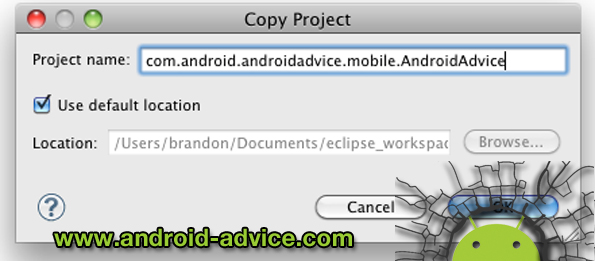
- Select the project that you want to copy, right click it and select copy
- Right click in the white space below that project in your package explorer and select paste.
- You will now be forced to rename the package so that there is not a duplicate.
- Open your AndroidManifest and rename the package-name and save
- Next you should have the ability to “Update Launch Configuration”, do it.
- Next rename the main package by selecting it, right clicking, select refractor and then rename
- You will now change the name of the package, preview and continue
- After saving it will ask you to “Update References”, do this as well.
Replace old icons with new ones in Eclipse and change App Name Label:
- First we will open “AndroidManifest.xml”
- Click on the tab below the editable file that says Application
- Find the Text Box labeled “Icon” and click Browse
- At the bottom you will see a button that says “Create New Icon”, click it
- Create your new icon and click finish
- If you get windows saying “Yes to All”, click them
If this process created another set of icons instead of overwriting the old ones you will need to go into your “res” folder and delete the old ones and rename the new ones to match.
After completing the two processes above you should now have a new project that is completely independent of the one copied. Now you can create an entirely new app as a new project. If there are any steps that you notice have been left out or have anything else to add please feel free to leave it via comments below.
Thanks for the Tip. I have a question that can we Decode any apk file to it’s source code? If yes then How?